
Starting a Bundle from a Template
Updated
A template is a ready-made bundle. You give it a name and choose the products, and Bundable fills in the limits, discounts, steps and button text.
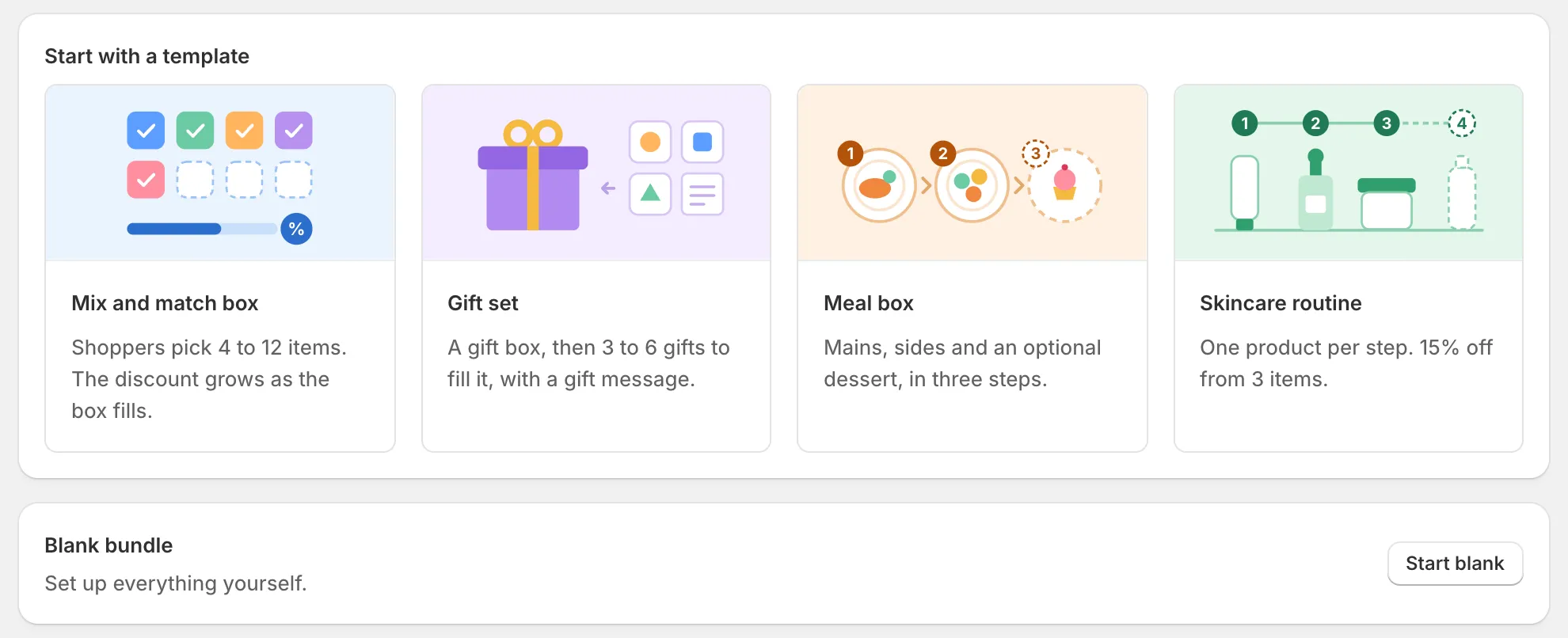
The Templates
| Template | What shoppers do | Discount |
|---|---|---|
| Mix and match box | Pick 4 to 12 items | 5% off from 4 items, 10% from 6, 15% from 9, 20% at 12 |
| Gift set | Choose a gift box, fill it with 3 to 6 gifts, and add a gift message | None |
| Meal box | Pick 2 to 4 mains, 1 to 3 sides and up to 2 desserts, in three steps | 5% off from 4 items, 10% from 6, 15% from 8 |
| Skincare routine | Go through four steps: Cleanse, Treat, Moisturize and an optional Protect | 15% off from 3 items |
A template is only a starting point. The names are suggestions, so a Meal box works just as well for a snack box, and a Skincare routine for any “one from each group” bundle.
Create a Bundle from a Template
- Open Bundable and click Create bundle
- Click a template
- Enter a Bundle name
- For each part of the bundle, click Select collection or Select products. A template with steps asks once per step
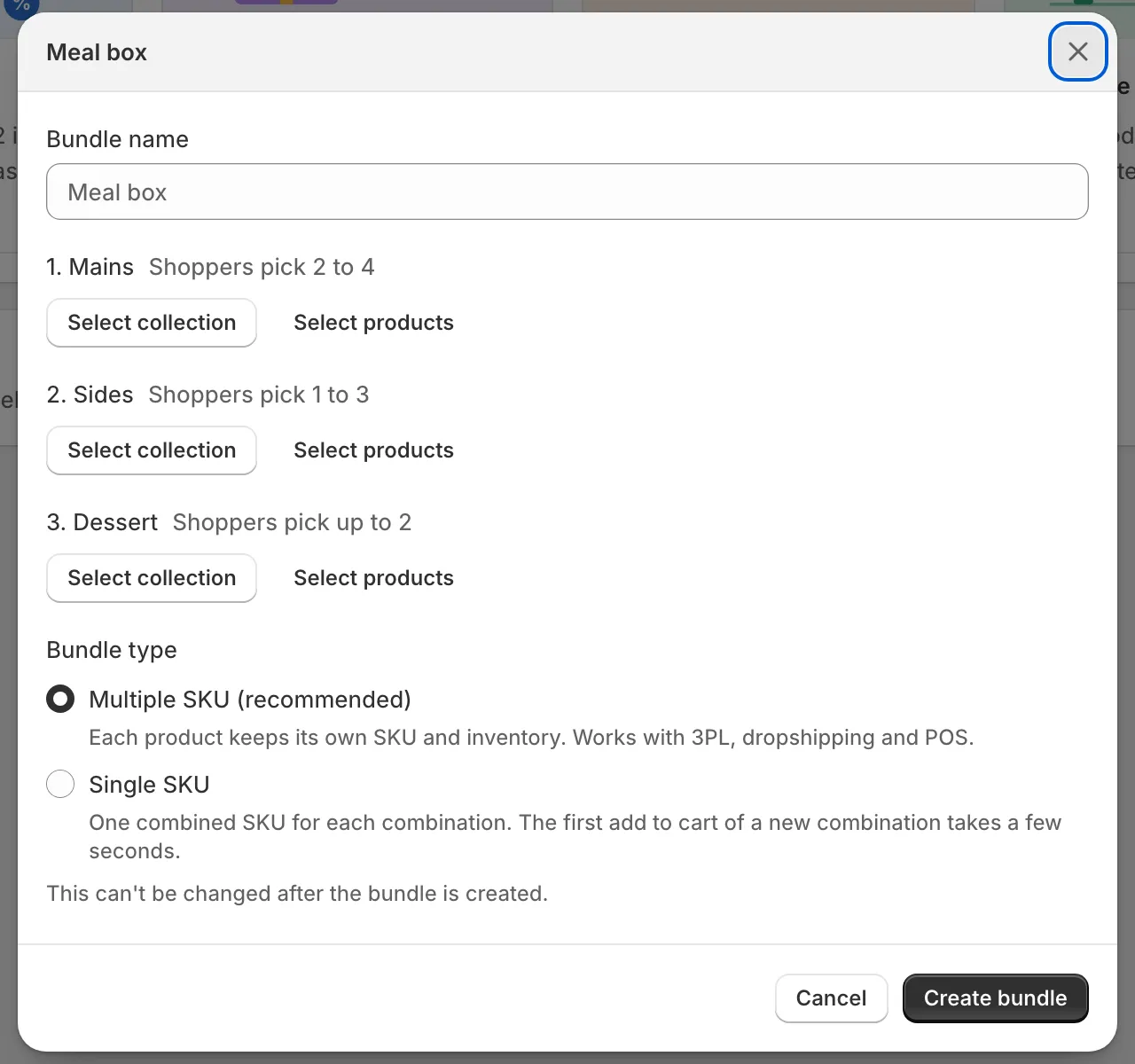
- Choose a Bundle type. Multiple SKU is recommended, and it can’t be changed after the bundle is created
- Click Create bundle
The bundle page is live right away. A Bundle created banner then offers Turn on redirect and View bundle page. See Getting Started for what those do.
Change What the Template Set Up
Everything a template fills in can be edited afterwards. Open the bundle from Home and change:
- The limits and steps, in Products
- The discount, in Pricing. See Discount Setup and Tiered Pricing Discounts
- The button text and gift message label, on the Translations page
Start Blank
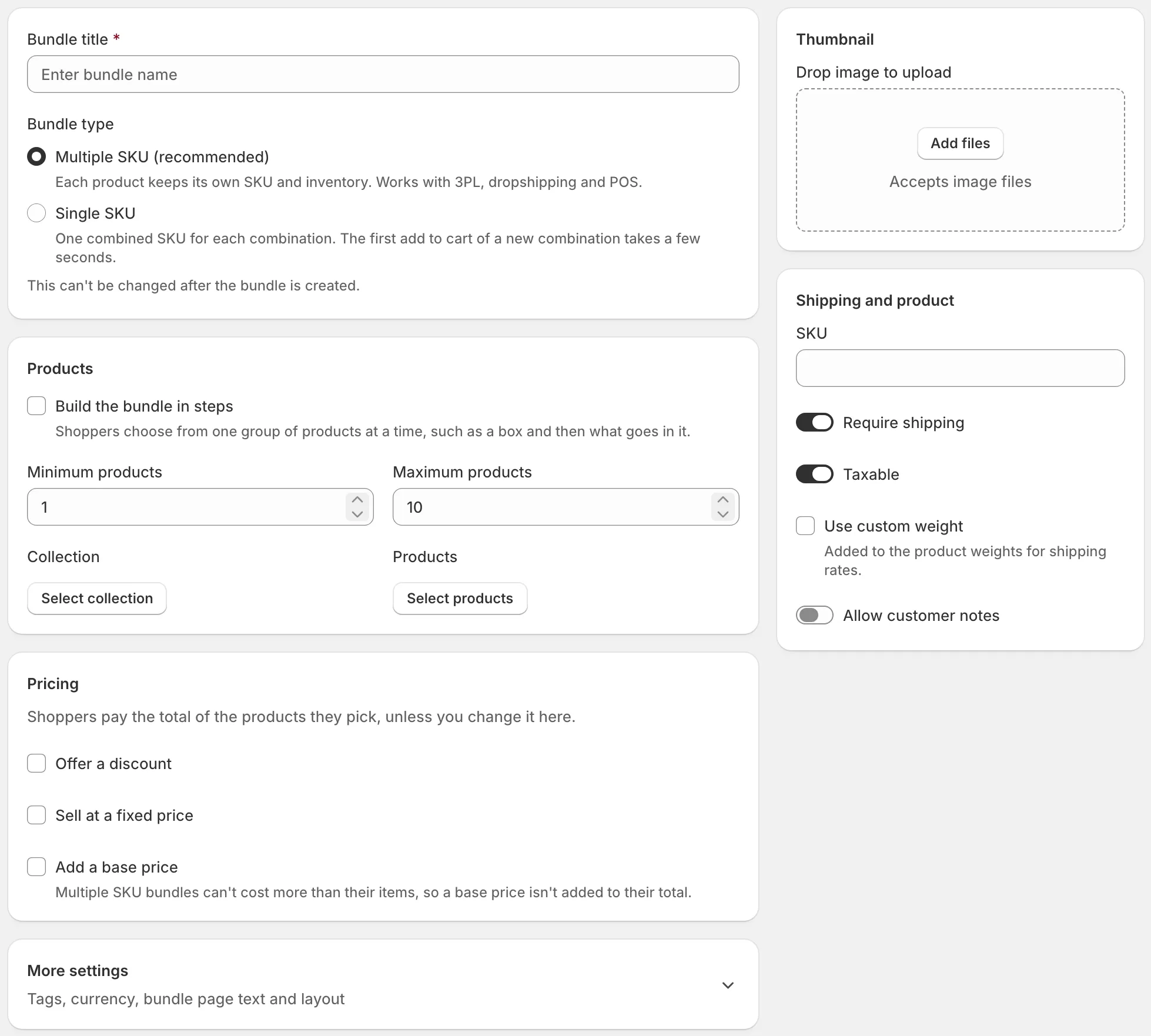
Prefer to set up everything yourself? Click Start blank under the templates. You get a short form with the bundle’s title, type, products and pricing. The less common settings sit under More settings, and all of them can also be changed later on the edit page.
Templates and the Template Editor
These templates are different from the Template button at the top of a bundle’s edit page. That button opens the editor for the bundle page’s HTML, CSS and JavaScript. See Customizing Bundle Page.
Questions? Reach out to us at support@soviapps.com.
Still need help? Contact our support team